Using Naver Map and KakaoMap in English makes navigating South Korea much easier, even if you do not read Korean. While both apps support English, official sources do not claim that every screen, review, or notice is fully translated, and the two apps can return different place results or routes for the same search. This guide covers how to set up each app where the sources allow, find the right place, compare routes, and confirm the correct entrance at a K-pop concert venue.
We suggest treating the two apps as complementary. Running the same search in both is a practical way to catch a wrong pin or an unexpected route. That is our recommendation, not a documented feature of either app. Throughout the guide, we separate what the companies document from what we suggest, and we say so plainly when the official sources do not answer a question.
Table of Contents
1. Which Map App Should You Use in Korea?
None of the sources we reviewed shows that one app is better for every visitor, so we do not rank them. The table below separates what the companies document from what we recommend in practice. Rows marked “documented” come from NAVER, Kakao, or the apps’ US App Store listings. Rows marked “practical tip” are our own editorial suggestions.
| Feature | Naver Map | KakaoMap |
|---|---|---|
| Language support (documented) | Korean, English, Simplified Chinese, and Japanese, per NAVER and its App Store listing. | English and Korean, per its App Store listing. |
| Route modes (documented) | Public transit, driving navigation, and walking directions, per the App Store listing and release notes. Cycling routes are not confirmed in the sources we reviewed. | Public transit, car, walking, and bicycle routes, plus in-app navigation, per Kakao. |
| Transit and search features (documented) | Real-time transit arrival information, subway maps, and boarding and disembarking guidance, per NAVER. | One search window for a bus number, bus stop, or place, and push notifications for when to get on and off public transit, per Kakao and its App Store listing. |
| Translated content (documented) | Place information, visitor reviews, and place filters. NAVER’s 2024 announcement applied the filter translation to the restaurant category first. | Not documented in the sources we reviewed. |
| If an English search fails (practical tip) | Try the official Korean name or the full Korean address. | Try the official Korean name or the full Korean address. |
| Check before following a route (practical tip) | Confirm the branch address, district, nearest station, and exit. | Confirm the branch address, district, nearest station, and exit. |
A few cautions apply when you read the table. A listing that says English is supported confirms language support at the listing level. It does not show that every place name, review, notice, or alert is translated. NAVER’s announcements were published in October and December 2024, so details may have changed since then. We checked both App Store listings in October 2026, and store pages and app versions will keep changing.
If you are deciding where to start, the documented differences point in a few directions. NAVER documents translated place pages, translated visitor reviews, and subway maps, which helps when you are choosing a restaurant or reading about a place. Kakao documents a single search window for a bus number, a bus stop, or a place, plus push notifications for when to get on and off public transit, which helps when you are already on the move. Kakao’s materials do not say whether reviews are translated, so we cannot say how it compares on that point. Either app can handle basic place search and route viewing.
Check your phone before you install. As of the October 2026 listings, NAVER’s iOS listing requires iOS 16.0 or later and KakaoMap’s iOS listing requires iOS 17.0 or later. We did not review the Android requirements, so check the Google Play listing for your device.
2. How to Set Naver Map to English
NAVER Map Web site Link
NAVER Map Download Links (English Version)
- 🍎 iPhone (iOS): NAVER Map, Navigation on App Store
- 🤖 Android: NAVER Map, Navigation on Google Play
Install NAVER Maps, Navigation from your official app store and confirm that the developer is listed as NAVER Corp. Search results can include apps with similar names and icons, so the developer name is the quickest check. NAVER says the app’s multilingual service follows either your phone’s language setting or the language setting inside the app. If the app opens in Korean, check both.
NAVER’s support materials describe the language setting as available from app version 5.1.3 onward. That is an old release, and the App Store listing we checked in October 2026 shows a 6.x version, so a fresh install should already meet the requirement. NAVER also keeps a Korean-language help page on map-app language settings.
We do not list a tap-by-tap path for Android or iOS here. Menu names change between app versions, and we could not confirm a current path from an official source. Look for a language option in the app’s settings, or change your phone’s language. Once you find it, test the result by searching for a well-known landmark and checking that the menus and the place page appear in English.
According to NAVER’s 2024 announcements, translation covers business names, addresses, business categories, and detailed place information. A later update added business hours, the tabs on place pages (such as reviews, photos, and information), and convenience details such as takeout and reservation availability. NAVER also added translated visitor reviews, using its Papago translation technology, and translated place filters, which at that time applied to the restaurant category.
Because the reviews are machine-translated, treat them as a rough guide rather than an exact statement of fact. For opening hours or anything that affects your plans, rely on the place’s own notice or website.
For getting around, NAVER says foreign users can check routes, real-time public transit arrival information, subway maps, and boarding and disembarking guidance. The App Store listing also describes real-time departure and arrival times and notifications for when to get on and off, and it lists English navigation for driving. Its release notes mention walking directions as well. Route availability and detail can still vary by location and service conditions.
3. How to Use KakaoMap in English
KakaoMap Website Link
KakaoMap Map Download Links (English Version)
- 🍎 iPhone (iOS): KakaoMap Map, Navigation on App Store
- 🤖 Android: KakaoMap, Navigation on Google Play
Install KakaoMap – Korea No.1 Map App from the official app store listing. The App Store lists the developer as Kakao Corp. and the supported languages as English and Korean. As with any map app, confirm the developer name before you install.
Besides routes, the App Store listing describes Road View for previewing a destination after a route search, a subway map, real-time bus information, and Favorites that you can organize into groups. These are the listing’s descriptions, and we did not test them ourselves.
After you search for a route, Kakao says you can start navigation inside the app without installing a separate one. It also says its route information uses data updated within the past 24 hours, and the listing’s release notes mention notifications for when to board and exit during subway trips. A 24-hour update window is not a guarantee of real-time accuracy during delays or disruptions.
The listing says location access is used to search nearby places and show directions from your current location, and that the service can still be used if you decline the optional permissions. It does not detail how each feature behaves without them, so decide based on your own comfort and test the app before your trip.
The official Kakao materials we checked do not explain how to switch the app’s language, so we do not give a menu path. If the app opens in Korean, checking your phone’s language settings and the app’s own settings is a reasonable first step, but that is a suggestion rather than a documented procedure. Do not expect every label, review, or notice to be in English either, because the official sources do not document that level of translation.
4. How to Search for Places in Korea
An English search will not always return the right place. Major stations and well-known landmarks are more likely to work in English, while small businesses, newly opened places, and individual branches are more likely to need Korean. Work through these steps in order:
- Search the official English name of the place.
- If nothing useful appears, copy the official Korean name from the venue’s website or your ticket notice and search that.
- Still nothing? Search the full Korean address from an official page.
- As a last resort, try the place’s phone number. The official sources we reviewed do not say that phone-number search works in either app, so treat it as a test.
- Before you select a result, check the address, district, nearest subway station, and phone number on the place details to make sure it is the right branch.
Map listings are built around Korean names and addresses, and romanized spellings of the same name can differ between sources. That is a practical explanation for why an English guess sometimes misses while the Korean name matches, not a documented rule of either app.
The best places to find the Korean name and address are the organizer’s announcement, your ticket notice, the venue’s own website, or the official page of the business. Copy and paste the text instead of retyping it, so that similar-looking characters do not cause mistakes. Avoid copying names from forums or social posts, which may be outdated or wrong.
As an example, Visit Seoul, the official travel site run by the Seoul Tourism Organization, lists Gocheok Sky Dome’s address as 430 Gyeongin-ro, Guro-gu, Seoul and gives the subway reference as Line 1, Guil Station, Exit 2, about 330 meters away. If you search for the dome in either app, compare the pin’s address with that listing. A match tells you the pin is on the right building. It does not tell you which gate your ticket uses, because that is set by the event.
Chains and large complexes often have several listings with nearly identical names. The details page usually shows the address and the nearest station, so use those to tell the listings apart before you start a route.
5. How to Compare Routes in Both Apps
Enter the same starting point and destination in Naver Map and KakaoMap, then compare these details before you commit to a route:
- Total travel time and number of transfers
- Walking distance, especially between transfers
- Subway lines, platform directions, and the recommended station exit, where shown
- Real-time arrival information, where shown
To make the comparison fair, follow these steps:
- Use the same start and end points in both apps. Pick the destination from a result whose address you have already checked.
- If an app lets you set a departure time, use the same time in both.
- Note the total time, the number of transfers, and the walking distance for each route.
- Look at the exit or platform guidance and compare it with the organizer’s notice if you are heading to an event.
Small differences are normal. If one app shows more transfers but less walking, the better choice depends on your situation, such as luggage, the weather, or how crowded the trains are. If the two apps disagree sharply, first check that both are using the same pin and departure time.
Treat every estimate as an estimate. Kakao says its route data was updated within the past 24 hours, and NAVER highlights real-time arrival information, but neither statement guarantees accuracy during delays, closures, or weather disruptions. Event days can bring crowds that no route estimate reflects. If your event ends late, check last-service times against Korea time rather than your home time zone. Save a screenshot of the route you choose, so that you can still read it if your signal drops.
6. How to Find a K-Pop Concert Venue
Large venues can have several buildings, gates, and nearby station exits, so a map pin alone does not tell you where to enter. Station names and pins do not confirm the correct event entrance either. The organizer’s instructions decide which entrance and which exit you should use.
- Get the official venue name and address from the organizer’s announcement or your ticket notice.
- Search that name or address in both apps and confirm the pin matches the official address.
- Find the entrance, gate, or station exit named in the organizer’s instructions, and follow those instructions over the pin.
- Check the organizer’s notices again on the day of the event in case access details change.
If the notice names a gate or exit only in Korean, copy the Korean text and search it, or compare it with the signs at the station. Do not guess an English equivalent. If the notice does not name a gate at all, treat that as unresolved and ask the organizer or ticket seller instead of assuming the nearest exit is correct.
The venue itself is general information, while the entrance is event information. For Gocheok Sky Dome, for example, the address and the Guil Station Exit 2 reference from Visit Seoul describe the building. Which gate you use at a particular concert depends on that event’s notice and your ticket.
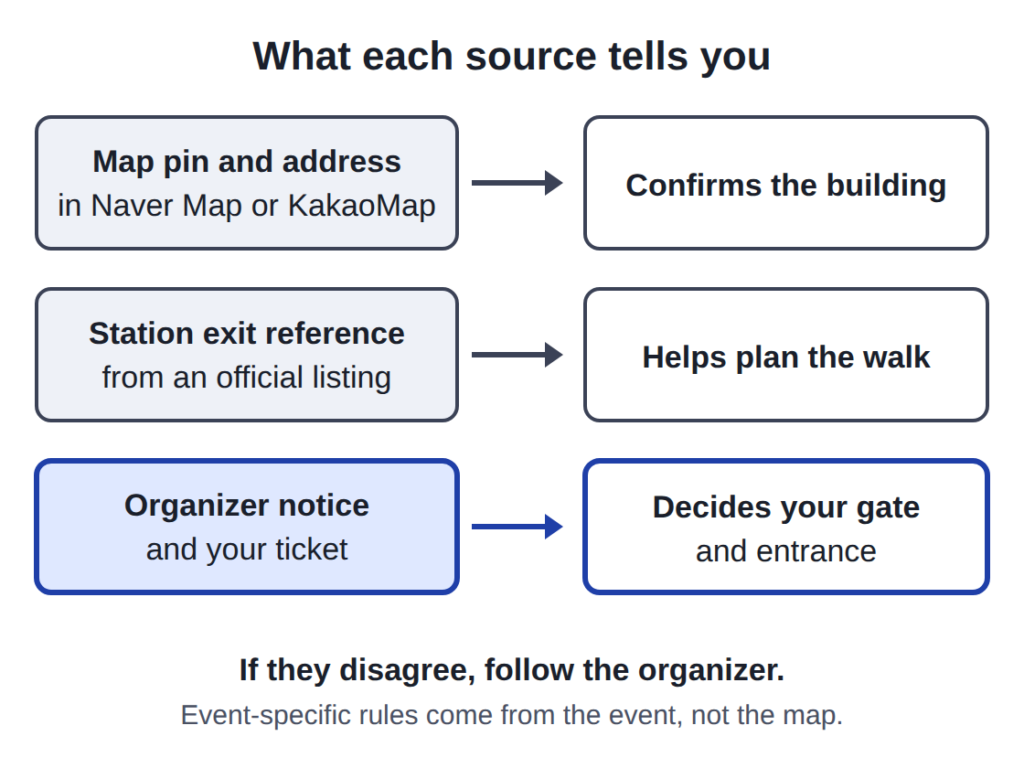
Event-specific rules come from the event, not the map.
A useful habit is to note which station each app suggests as the closest one when you search the venue. If the two apps suggest different stations, treat that as a cue to open the organizer’s notice rather than to pick one at random. Map suggestions are a starting point for planning, while the event notice is the source for the entrance you should use. On the day itself, follow staff directions and posted signs as well.
For venue-specific details, see our Gocheok Sky Dome concert guide and our KSPO Dome seating guide.
7. Common Problems and How to Fix Them
Some text is still in Korean
This is expected. English support does not mean that every place name, review, notice, transit alert, or linked page is translated. A translation tool on your phone can help with the rest, and the original Korean name is still useful for searching.
The app stays in Korean
For Naver Map, check both your phone’s language and the app’s own setting, because NAVER says the service follows either one. For KakaoMap, see the language note earlier in this guide. After changing a setting, reopen the app and test with a well-known landmark.
A search returns nothing or the wrong place
Use the search steps above in order, from the English name to the Korean name to the full address. Check the branch details before you select a pin.
The two apps show different routes
Check that both use the same pin and departure time, then compare transfers and walking distance. Neither company guarantees that its estimate will match actual conditions.
A translated review sounds odd
NAVER describes its review translation as machine translation, so wording can be imprecise. Use reviews as a general guide and confirm important details with the place itself.
The pin is right but the entrance is unclear
Go back to the organizer’s official instructions for the gate and station exit. The map is only a guide to the building.
App times differ from what you see at the station
Treat the times in the app as estimates. If the signs or announcements at the station say something different, follow the station and check the route again. Delays and temporary changes can appear on the spot before they appear in an app, and neither company guarantees that its data matches conditions at a given moment.
If you cannot solve a problem in the app, the organizer’s official notice and the venue’s own information remain the most reliable references for event-day access.
8. Final Checklist Before Traveling
Use this list in the week before you fly and again the day before your event. Each item connects to a section above, so you can reread that part if something is unclear.
- Install both apps before you leave. Check the language in each, and confirm that your phone meets the app’s version requirements.
- Save key places in both apps. Save your hotel, key stations, and concert venue, and note their Korean names and addresses.
- Keep the organizer’s instructions on hand. Screenshot or copy the gate and exit instructions so you can read them without a signal.
- Test a route at home. Search a Korean landmark in each app so that the language settings and search steps are familiar before you arrive.
- Download over Wi-Fi. The October 2026 iOS listings show roughly 475 MB for NAVER Maps and 483 MB for KakaoMap, so install them before you rely on mobile data.
- Plan the trip back. If your event ends near subway closing time, check late-night options in advance.
- Carry your hotel’s Korean address. Keep it ready to show a taxi driver or to paste into a map.
This list is an editorial suggestion, not an official procedure. Nothing here replaces the instructions from your event organizer, and app features may change, so a short test run before the trip is worth the few minutes it takes. If you are traveling with friends, agree in advance on one meeting place that all of you have saved in your apps, and write down its Korean name so that anyone can search it. Where the organizer, venue, or transport operator gives a different instruction, follow theirs.
9. Sources and Official Links
We relied on company announcements, official app store listings, and an official tourism site. Company announcements describe features at the time they were published, and store listings change with each update, so confirm important details in the app itself.
- NAVER Corp.: NAVER Map usage guide for foreign visitors (December 30, 2024) – supports the four-language claim and the transit features NAVER describes for foreign users.
- NAVER Corp.: translated reviews and place filters on NAVER Maps (October 2, 2024) – supports the phone-or-app language rule and the translation scope.
- NAVER Help Center: map-app language settings (Korean) – NAVER’s own help topic on this setting.
- NAVER Maps, Navigation on the US App Store – supports languages, route features, and version notes.
- Kakao Corp.: KakaoMap service overview – supports route modes, in-app navigation, and the 24-hour data statement.
- KakaoMap – Korea No.1 Map App on the US App Store – supports languages, search, and feature descriptions.
- Visit Seoul: Gocheok Skydome – supports the address and subway reference used in the venue example.
We did not use blogs, forums, or app-store user reviews as proof of any feature. Where a secondary source offered a menu path or a claim that the official materials did not confirm, we left it out. These sources do not establish a current menu path for changing the language in either app, whether Kakao translates reviews, or which gate applies to any particular concert. We have left those points open rather than guess, so please confirm them in the app or with the event organizer.
Last reviewed: October 14, 2026