At some K-pop concerts, the production team controls official light sticks from a central system, changing their colors and patterns with the show. Getting yours to join in isn’t always as simple as switching it on. Whether you need K-pop light stick pairing depends on the concert, your light stick version, and the official app.
This guide explains how seat pairing works when a concert uses it, how to check the rules for your exact show, and how to finish setup before you reach the venue.
Quick answer
- Seat pairing is not a rule for every concert. Some shows use it. Others only need you to switch the light stick on.
- Your concert’s official notice decides which applies.
- Where pairing is used, you typically connect the light stick to the official app, choose your concert date, enter your exact seat, and confirm.
- A Bluetooth connection alone does not mean your seat is registered.
- Pairing may not open until a day or two before the show.
- Finish before you enter the venue.
1. Does Your K-pop Concert Require Light Stick Pairing?
Light Stick Pairing Is Event-Specific
Seat pairing applies only when a concert’s official notice and a compatible official app say it is required. When it is used, the app registers your light stick to your ticketed seat so the production system can control its colors and patterns during the show.
Some concerts don’t use it. The official BTS Official Light Stick Ver.4 app listing says that for concerts that don’t require pairing, the light stick lights up automatically if you turn it on before the concert begins. For concerts that do require pairing, it tells fans to follow the separate concert guide and register the concert in the app’s Concert Mode menu. Don’t assume your concert matches that example, or any other.
How to Check the Official Pairing Instructions
- Find the official notice for your exact concert date. Check the artist’s official channels, such as Weverse notices. Timing and wording vary, so check again as the date approaches.
- Check the official light stick app. The BTS Ver.4 app lets you view upcoming concert information and whether pairing is required. Other apps may organize this differently. The CLOSE YOUR EYES guide calls its section CONCERT MODE, but labels vary.
- Confirm your light stick version is supported for that event.
2. What You Need Before Pairing
The Correct Light Stick Model
Check the exact version, not just the artist name. Firmware requirements, app support, and controls can differ between versions.
Example only: In the official notice for ENHYPEN’s WALK THE LINE tour, Official Light Stick Ver. 1 needed a firmware update to v2.0, while Ver. 2 did not. The same notice said the Light Stick and Light Band had to be paired one by one, not at the same time.
The Official Light Stick App
Install the official app for your light stick and keep it updated. App store availability in your country and any login requirements can differ by app, so check both before you travel.
Your Concert Date and Exact Seat Details
Seat-based pairing may ask for the performance date and your seat information exactly as printed on your ticket. The exact fields, such as block or section, row, and seat, vary by app and venue. Have your ticket ready and make sure you use the one for the correct date.
Have your ticket ready and make sure you use the one for the correct date. If you still need to book, see our guide on how foreigners can buy K-pop concert tickets in Korea, or our NOL World ticketing guide.
Batteries or Power
Battery requirements are model-specific. Official materials for BTS Ver.4 and official notices for CLOSE YOUR EYES and TWS events specify three AAA batteries, and the BTS and TWS guidance specifies alkaline. Don’t assume yours uses the same. Check the battery compartment, the manual, or the notice. Don’t assume yours uses the same. Check the battery compartment, the manual, or the notice. The BTS Ver.4 app also advises replacing old batteries with new alkaline ones before use.
Our suggestion is to install fresh batteries before you pair, so you don’t need to swap them afterward.
3. How to Pair Your Light Stick Before the Concert
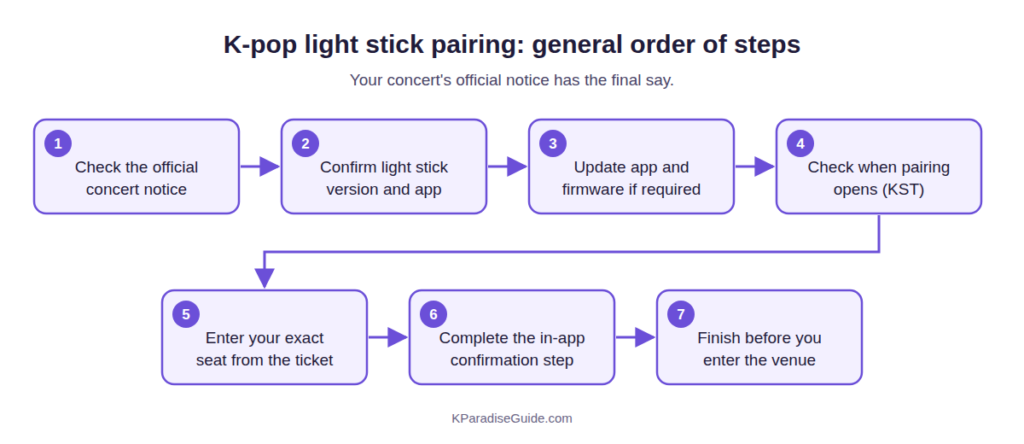
Button actions and app screens differ by artist and model. Treat this as a general checklist, and follow your official guide for exact actions.
Step 1: Check Whether Pairing Is Required
Read the official notice or the app’s concert information for your date. If the notice says only to switch the light stick on, you may not need the remaining steps.
Step 2: Install the Correct Official App
Use the app named in the official notice or listed for your light stick. Fan-made guides can be outdated or wrong for your city and date, so rely on the notice.
Step 3: Update the App and, if Required, the Firmware
Update the app first. Then check whether the notice requires a firmware update for your version. The BTS Ver.4 app says to always keep the light stick firmware up to date. In the ENHYPEN example above, only Ver. 1 needed an update. In the CLOSE YOUR EYES example, the app had fans wait while the light stick updated during the pairing flow.
Step 4: Prepare Your Ticket and Seat Information
Find the exact seat details on your ticket, for the right performance date. Note them down before you start.
Step 5: Put the Light Stick Into the Required Connection Mode
Two terms are easy to confuse. Bluetooth mode connects the light stick to your phone. Concert Mode is the app section where you register your concert and seat. The way to enter Bluetooth mode depends on the model:
- BTS Official Light Stick Ver.4: with the light stick off, press and hold the buttons on the handle together for two seconds. A blue blink indicates Bluetooth mode.
- BTS Ver.3 and SE (older app): the older app’s listings describe a switch on the light stick. Fans were told to move it down to enter BLUETOOTH MODE for pairing, and to set it to CONCERT MODE to take part in the show.
- CLOSE YOUR EYES (Seoul guide): double-click the power button.
Always follow your own model’s manual or notice.
Step 6: Select the Concert and Enter Your Seat
In the CLOSE YOUR EYES guide, fans checked the concert name, tapped Enter Seat Info, chose the concert date, and entered their seat exactly as shown on the ticket. Your app’s labels may differ, but the idea is the same: pick the right show, then enter the seat accurately.
Step 7: Complete Registration and Confirmation
Follow the app through to its final step. In the CLOSE YOUR EYES example, fans waited for the light stick to update, reconnected it in Bluetooth mode, checked their information, and tapped Confirm. A Bluetooth connection alone does not prove your seat is registered. The older BTS app makes the same point: if the light stick doesn’t work properly, the cause may be an incomplete pairing process.
Step 8: Finish Before Going to the Venue
The CLOSE YOUR EYES guide tells fans to sync before entering the venue, and the ENHYPEN notice warns that crowding at the venue can slow or break pairing and firmware updates. Our advice is to finish as soon as your pairing window opens, ideally before you leave your accommodation.
4. When Does Light Stick Pairing Open?
Pairing May Not Be Available Immediately After Ticket Purchase
At some concerts, pairing opens late. The official ENHYPEN notice said seat pairing could be done about one to two days before the show. If your concert doesn’t appear in the app weeks in advance, pairing may simply not have opened yet. Other events may differ, so check your notice for the date.
Use Korea Standard Time (KST)
Work out the concert date and any pairing window in KST (UTC+9), unless the notice names another time zone. Convert to your local time, and double-check the date, since it may differ from your home date.
5. What International Fans Should Know
The notices and app listings cited in this guide describe app steps and seat details. They don’t say that foreign visitors face extra pairing requirements, and they don’t rule them out either. This table separates what is confirmed from what isn’t.
| Question | What’s confirmed | What to do |
|---|---|---|
| Do I need a Korean phone number? | Not stated as a requirement in the sources cited here. Account and login rules are app-specific, so this is not confirmed either way. | Install the app and check you can open it and log in, if required, well before the concert. |
| Do I need my passport? | The cited sources don’t mention passport details in pairing. Admission ID checks are a separate matter handled by the ticket issuer. | Check your ticket issuer’s pickup and ID rules. |
| Do foreign credit cards matter? | Payment is not part of the pairing steps in the cited sources. Card issues relate to buying tickets or merchandise. | Treat payment as a separate ticketing issue. |
| Does my ticket name have to match? | Pairing guides ask for date and seat details, not names. Name matching, where it applies, is an admissions policy. | Check your ticket issuer’s rules. |
| Do I need to allow app permissions? | The BTS Ver.4 app lists Bluetooth as required to connect and control the light stick. Other apps and phones may request different permissions. | Allow what your official app requests. If it can’t find your light stick, check Bluetooth and permission settings. |
| Can I use a mobile ticket? | The cited notices require the exact seat information shown on your ticket. | Record the block or section, row, and seat before you begin. |
| Will there be an on-site help booth? | Event-specific. For example, the official notice for TWS 2ND FANMEETING <42:CLUB> IN SEOUL (March 27–29, 2026) listed pairing booths outside and inside the venue, with set hours for each day. No general service is confirmed. | Count on a booth only if your notice names a location and hours. |
| What if I change seats? | Not confirmed in general. The older BTS app tells fans to sit in the seat they registered. No cited source gives a general procedure for seat changes. | Check your notice or ask official support. Don’t assume your pairing carries over. |
6. Common Light Stick Pairing Problems
“My Light Stick Connects, but Seat Pairing Is Incomplete”
A Bluetooth link only connects the light stick to your phone. If your concert uses seat pairing, you still need to complete the app’s concert steps, such as choosing the concert and date, entering your seat, and confirming.
“Pairing Is Not Available Yet”
Registration may open only a day or two before the show, as in the ENHYPEN example. Re-check the official notice for your concert’s schedule.
“I Have the Wrong Light Stick Version”
Compare your exact version with the notice. Version can affect the firmware requirement, app support, and controls. If your version isn’t mentioned, check the official channel before relying on it.
“The App Cannot Connect to My Light Stick”
- Make sure your phone’s Bluetooth is on.
- Allow the permissions the app requests.
- Confirm the light stick is in Bluetooth mode for your model. For BTS Ver.4, a blue blink indicates this.
- Replace weak batteries with fresh ones of the type your model specifies.
“My Battery Is Low or Dies”
For BTS Ver.4, the official app listing says the light stick stays paired during the concert even if you replace the batteries. Don’t assume other models work the same way. If your notice doesn’t say so, assume you may need to re-pair. That is another reason to start with fresh batteries.
“I Tried to Pair at the Venue and It Failed”
The ENHYPEN notice warns that crowding at the venue can delay or break pairing and updates. Check whether your notice mentions on-site support, but don’t assume any exists. Next time, finish setup early.
7. What Not to Assume About K-pop Light Stick Pairing
- That every Korean concert requires pairing. Some only need the light stick switched on.
- That every light stick syncs automatically. Check the notice.
- That Bluetooth mode works the same on every model. BTS Ver.4 uses a two-button hold, older BTS models use a switch, and the CLOSE YOUR EYES guide uses a power-button double-click.
- That every light stick uses three AAA batteries.
- That pairing opens when you buy your ticket.
- That every concert has a pairing booth.
- That a Korean phone number or passport name is part of pairing. Neither is confirmed in the sources cited here.
- That Bluetooth connected means seat registered.
- That firmware updates are always, or never, required.
- That every model keeps its pairing after a battery change. Only BTS Ver.4 is confirmed in the sources cited here.
8. Official Example: CLOSE YOUR EYES Seoul
Example only. Check your own concert notice.
For CLOSE YOUR EYES 1ST TOUR [BEYOND YOUR EYES] IN SEOUL, the official notice on Weverse asked fans to follow this sequence:
- Download the official app and open CONCERT MODE.
- Double-click the light stick’s power button to enter Bluetooth mode, then tap Connect.
- Check the concert name, tap Enter Seat Info, and choose the concert date.
- Enter the seat information exactly as printed on the ticket.
- Wait while the light stick updates.
- Reconnect in Bluetooth mode, check all information, and tap Confirm.
- Sync before entering the venue, and use three fresh AAA batteries.
This is one event’s procedure. Don’t treat its button sequence or battery type as a standard rule. Notices may also be edited or archived after a concert ends.
9. Final Pre-Concert Light Stick Checklist
Use this the day before your show and again on the morning of it.
| # | Action | Done |
|---|---|---|
| 1 | Checked the official notice for my exact concert date, including whether pairing is required | ☐ |
| 2 | Confirmed my light stick version is supported | ☐ |
| 3 | Installed and updated the official app, and can open it and log in if required | ☐ |
| 4 | Completed any firmware update my model or notice requires | ☐ |
| 5 | Checked when pairing opens (in KST) | ☐ |
| 6 | Selected the correct concert date and entered my seat exactly as on my ticket | ☐ |
| 7 | Completed the required Bluetooth and Concert Mode steps and confirmed | ☐ |
| 8 | Installed the batteries my model specifies, and packed spares | ☐ |
| 9 | Finished pairing before arriving at the venue | ☐ |
Heading to a show at KSPO Dome or Gocheok Sky Dome? Our KSPO Dome seating tips and Gocheok Sky Dome concert guide cover the venue side of concert day.